
The first version of the new Managing Persons in Photo Collections desktop app is ready for publication.
This release marks a clear step forward from the earlier, primarily educational prototype. The old version demonstrated the basic idea: keep a folder of known people, encode reference images, and use those encodings to recognize people in new photos.
The new version turns that idea into a more complete desktop application. It is no longer just a recognition script with a GUI around it. It is a managed workflow for building, checking, curating, repairing and improving a person-recognition knowledge base over time.
The main goal is still simple: help users organize large personal photo collections by recognizing known people, reviewing uncertain matches, and improving the quality of the knowledge base instead of blindly adding more images to it.
But the architecture behind that goal has changed substantially.
From prototype to managed application
The previous version was intentionally simple. It used a folder-based knowledge base (KB).
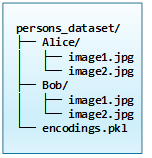
That worked well for learning and experimentation. One folder represented one person. The app encoded the images, stored the face encodings, later also body encodings, and then compared unknown images against that bank.
The new version keeps the same understandable foundation, but adds the parts needed for long-term use:
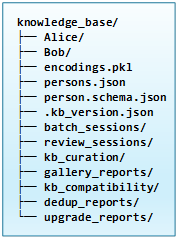
The KB is now treated as a real workspace. It contains not only reference images and encodings, but also metadata, reports, compatibility checks, review sessions and curation output.
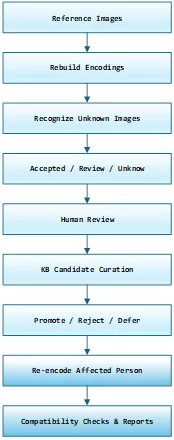
That distinction matters. In the older app, adding images to a person folder was effectively the same as teaching the system. In the new app, recognition, review and knowledge-base curation are separate steps. That makes the application safer and more useful.
What the new app does
The app is designed around several connected workflows.
1. Person recognition
The recognition workflow compares new images against the current knowledge base. It can use face evidence and body/person appearance evidence. Instead of treating every match as equally certain, the app collects evidence and shows contenders. The user can then decide whether the result should be assigned to a known person, kept as unknown, or deferred for later review. This continues the workflow described in earlier posts on LinkedIn and on the website about human-in-the-loop recognition and review.
This makes the workflow more realistic. Photo collections often contain difficult cases, like blurry faces, side profiles, partial faces, people wearing sunglasses, family members who look similar, photos where the body is visible but the face is weak and old or low-resolution images. The app is designed to support review instead of pretending every match is certain.
2. Review sessions
Not every correctly recognized image should become a new reference image. That is one of the main lessons behind this release. More reference images do not automatically make recognition better. A person’s knowledge-base gallery should contain useful, representative and reasonably high-quality references.
The new app therefore includes a curation workflow. Candidate images can be promoted, rejected or deferred before they are added to the knowledge base. This helps avoid polluting the reference set with weak images, duplicates, cropped fragments or misleading examples.
This topic has also been the subject of recent publications on this website and on LinkedIn.
4. Gallery optimization
The app can analyze the existing knowledge-base gallery of a person and compare it with this person’s broader media collection. The goal is not simply to collect the largest possible number of images per person. The goal is to keep a better reference gallery.
Useful reference galleries usually contain variation. We need clear frontal face images but also side or angled face images with different lighting, different ages or appearances.
Where body recognition is useful, the gallery should also contain enough appearance variation without becoming dominated by duplicates.
The gallery optimizer helps users review whether the current knowledge-base images are still useful, whether better alternatives exist and whether some references should be replaced.
5. Duplicate detection
Large photo collections often contain duplicates or near-duplicates. The app includes duplicate detection and reporting -provided by a dedicated version of the standalone Dedup app- in which users can visually inspect duplicate groups before taking action.
The current workflow supports report-first behavior and a separate quarantine action in the Knowledge Base Menu. That separation is intentional. Find Duplicate Images runs a dry-run analysis and writes a report only. Quarantine Duplicate Images will move the non-keeper files into a dedicated quarantine folder after confirmation. Automatic deletions will not occur; this avoids destructive surprises.
6. Compatibility checks
The new app contains more moving parts than the old prototype. It therefore includes a knowledge-base compatibility checker. This diagnostic tool looks for issues such as a missing encodings file or a missing person database, mismatched face names and face encodings and mismatched body names and body encodings or body embeddings with missing or incompatible pipeline metadata. Also checked are missing person folders, orphaned folders, incomplete person records and small or empty galleries.
This is especially useful after upgrading from an older app version.
7. Safer startup and encoding-bank handling
The application still supports the existing encodings.pkl format. But loading pickle files has been hardened. A pickle file should not be treated like a harmless data file. The Python pickle library can execute code, which is potentially dangerous, for instance when a file has been tampered with by others. For this reason, the app now uses safer loading behavior and validation around the encoding bank.
For normal users, the practical rule is simple. If the app created the encoding bank itself, it should load normally. If an old encoding bank cannot be loaded safely, the app should not overwrite it. Run Rebuild All Encodings to create a fresh bank. Longer-term, the project may move away from pickle entirely and use a safer format such as NumPy .npz with JSON metadata.
Architecture overview
The new app is structured more like a desktop application than a single script. At a high level:
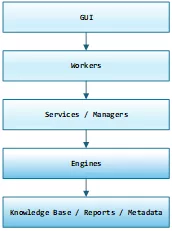
The GUI is responsible for user interaction: menus, dialogs, review screens, progress display and confirmations.
Workers handle long-running tasks so the interface stays responsive. Recognition, re-encoding, compatibility checks, duplicate analysis and gallery optimization can take time, so these operations should not block the main window.
Services and managers coordinate the application logic. For example, the person-service connects the person database, the knowledge-base manager and the curation workflows.
Engines do the actual computational work: recognition, comparison, hashing, duplicate grouping, threshold analysis and reporting.
The knowledge base stores the persistent artifacts: reference images, encodings, person records, compatibility reports, gallery reports, review-session output and deduplication reports.
This separation makes the application easier to maintain. It also makes the workflow easier to explain. The GUI asks, the worker runs, the engine computes, the service applies decisions and, finally, the knowledge base stores the result.
New installation
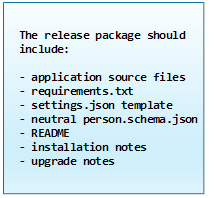
For a new installation, the recommended workflow is as follows.
After downloading the app, install the Python dependencies:
pip install -r requirements.txt
Create an empty folder for the new knowledge base and start the desktop application. Then run Initialize New KB.
With a new KB in place, you can start adding person records and reference folders. You then run Rebuild All Encodings. Just to be sure also run Check KB Compatibility.
When done, you’re ready to start recognizing and reviewing images.
A new knowledge base should normally start in an empty folder. After initialization, the app creates the basic workspace structure:
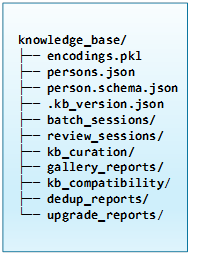
The important point is that initialization does not mean: scan a random folder and treat every subfolder as a valid person. Initialization creates the workspace. Adding people and building encodings are separate steps. That separation is intentional. It prevents the app from creating incomplete person records or treating system folders as people.
For a first test, do not start with the full archive. Create a small test folder with 20–50 images, run recognition, inspect the review results and only then scale up.
Upgrading from the previous app
Users of the earlier app should use the upgrade workflow rather than manually copying files into the new layout.
The recommended upgrade path is as follows. Keep a separate backup of the old knowledge-base folder. Start the new app and choose Import / Upgrade Legacy KB. Select the old knowledge-base folder as the source, then select the new destination folder for the upgraded knowledge base. Let the app copy the old person folders. When finished, run Check KB Compatibility. Run Rebuild All Encodings if requested or recommended. Review the generated upgrade and compatibility reports.
The upgrade process preserves the original old folder. It copies the useful data into a new v2 workspace instead of modifying the old app’s knowledge base in place. This is important because the new app has a different model of the knowledge base. It contains system folders, reports, metadata and a person database in addition to the person reference folders.
A legacy knowledge base may still contain a valid encodings.pkl, but the old encoding banks probably lack newer metadata, especially for the body-recognition pipelines. If the compatibility check reports missing or incompatible metadata, the safest fix is to go to the Knowledge Base menu, choose Maintenance / Repair and then Rebuild All Encodings. That creates a fresh encoding bank using the current app version and current recognition pipeline.
The upgrade workflow should copy data into a new v2 workspace; it should not modify the old KB in place.
Main menu structure
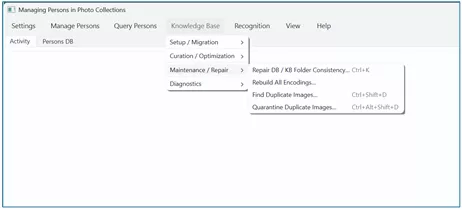
The knowledge-base menu is now organized around the lifecycle of the app:
- Setup / Migration contains Initialize New KB, Import / Upgrade Legacy KB and Check KB Compatibility.
- Curation / Optimization contains Curate Recognition Candidates and Analyze and Optimize KB Gallery.
- Maintenance / Repair contains Repair DB / KB Folder Consistency, Rebuild All Encodings.
- Find Duplicate Images, Quarantine Duplicate Images.
- Diagnostics / Reports contains Show Knowledge Base Stats, Media Folder Report, Analyze Recognition Thresholds.
This is a deliberate change from the earlier prototype. The old app mostly answered the question, can these images be recognized? The new app also asks, is the knowledge base healthy, current and worth trusting?
Main components
The app consists of more than 30 Python source files and several JSON configuration files. The most important of those are listed here.
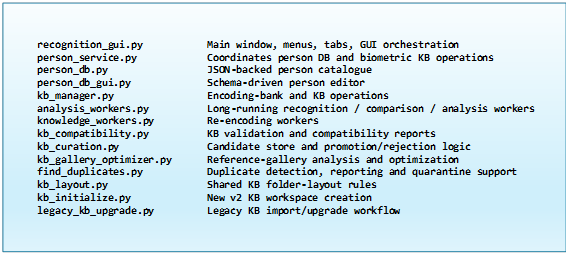
The role of persons.json
The new app adds the person database file persons.json. This file stores structured information about known people. It gives the app a place to store more than just a folder name. A person record can contain information such as: person name, aliases or alternate names, path to the person’s broader media folder, rating or priority fields, tags or classification fields and custom metadata used by the owner of the collection
The exact fields are controlled by a JSON schema.
Customization: The role of person.schema.json
The app uses a schema-driven person database. That means the structure of the person records is not fully hard-coded into the GUI. Instead, the person database is shaped by a file named person.schema.json.
The current schema uses JSON Schema draft 2020-12, to define a Person object, and includes generic fields such as personName, rating, files_path, nested fields, scores and other classification fields.
With this release we distribute a basic, domain-neutral schema as the starter schema that works for generic photo-collection management. The public starter schema stays deliberately small and domain-neutral. It define fields such as personName, otherName, files_path, notes, tags and active. Users who need richer metadata can extend the schema for their own context.
For example:
- A family archive might add: relationship, generation, birth year, family branch.
- A sports archive might add: team, season, role, shirt number.
- A research archive might add: source collection, consent status, review status, annotation notes.
- A media-management workflow might add: priority, category, collection path, known aliases.
This is one of the more useful architectural choices in the app. The recognition engine does not need to know every possible metadata field; the database editor does not need to know the biometric implementation details. An advanced persons-service coordinates all the operations between the two behind the scenes. The schema meanwhile lets the person database adapt to the user’s specific collection.
Customize the GUI
When you decide to customize the database schema it can definitely be useful to adjust the QueryPersonsDialog, used for browsing the content of the persons-DB, too.
The DB schema (person.schema.json) controls what fields exist and how records are edited. The Query Persons dialog is a roster view of the person database. It shows selected DB fields and, where available, a preview image for each person.
Originally, the default columns were controlled by a Python list named BASE_COLS. That worked, but it meant changing the Python source whenever the schema changed.
Below an example of a possible implementation:
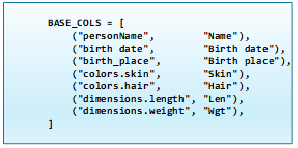
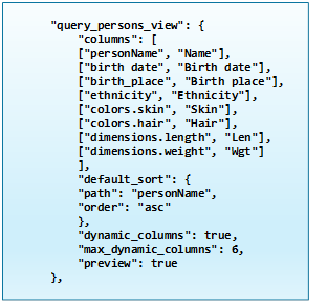
For the release version, the view definition can also live in settings.json. This keeps the schema focused on the data model while settings.json describes the application preference: which columns to show, in what order, whether dynamic columns should be added and which column should be used for default sorting.
The example above, is coded in JSON like this:
First-use checklist
After creating or upgrading a knowledge base go to the Knowledge Base menu and choose Show Knowledge Base Stats. Confirm that the expected person folders are visible. Then go to the Person DB tab and check whether person records exist. Confirm that each important person has a useful files_path if gallery optimization will be used.
Run Check KB Compatibility. Run Rebuild All Encodings if the report recommends it. Then run Analyze Recognition Thresholds if you want to tune matching behavior. Start with a small recognition batch before processing a large archive. For large collections, starting small is strongly recommended. Run a small test batch, review the results, adjust thresholds if needed, and only then process a larger folder.
Typical workflow
A normal workflow might look like this. Besides using the app to browse the database, query persons or search for lookalikes, you occasionally add or update person records.
You add trusted reference images to person folders, rebuild their encodings.
You might run recognition on a folder with a batch of new unknown images, review the recognition results and keep uncertain images unknown or defer them, but promote the good candidates into the knowledge base.
Periodically you optimize the KB gallery and/or run duplicate detection. Re-run compatibility checks after structural changes.
The main difference from the old prototype is discipline. The knowledge base is not just a dumping ground. It is curated. That is what makes recognition quality easier to maintain over time.
Who this app is for
This app is useful for people who manage large local photo or media collections and want more control than a black-box cloud photo service provides.
Possible use cases include family photo archives, which -as I know from personal experience- can grow pretty large, and personal media libraries.
Historical photo collections, local research archives and other offline collection-management workflows can also benefit from these features. Which is the case for all kinds of offline collection management.
The app can also be useful for experiments with face/body recognition workflows.
The app is designed as a local-first desktop workflow. It does not require uploading a photo collection to a cloud service. The photo collection, person database, encodings and reports stay in local folders chosen by the user.
It is also still useful as an educational project because the architecture is visible. Users can inspect how recognition, review, curation and reporting fit together.
What this app is not
This is not a production surveillance system. It is also not a magic fully automatic identity system. The app is built around the assumption that recognition needs review, especially when the image quality is low or people look similar.
The app is intended for controlled personal or research collections where the user has a legitimate reason to organize the images and understands the limits of automated recognition.
Why the architecture matters
The most important change in this release is not one specific feature. It is the architecture. The app now treats recognition as a lifecycle. Encodings are taken from reference images. But recognition results can be subjected to human review. Active candidate curation and gallery optimization are offered as are compatibility checks, rebuilds and reports.
That is a much stronger model than: put images in folders, run recognition and hope the result is correct.
It also makes the application easier to extend. Future improvements can be added as separate pieces, like better reports, safer encoding-bank formats, improved body-recognition models and richer person schemas with better duplicate handling, even smarter candidate selection and overall, more visual review tools.
Because the app now has a clearer separation between GUI, workers, services, engines and stored artifacts, those improvements can be added as separate components.
Final thoughts
The new version of Managing Persons in Photo Collections is still a practical desktop tool, but it has grown into a more complete system. It can recognize people. The app can review uncertain results. It can curate candidates. Also it can optimize reference galleries and it can detect duplicates.
It can check whether the knowledge base is healthy. It can upgrade older knowledge bases without destroying the original. Most importantly, it helps users avoid the trap of treating every new image as a good reference image.
For person recognition, the quality of the knowledge base matters. This release is built around that idea.
Download
The source code including installation and setup instructions can be found here.

A summary of this article has been published on LinkedIn.
Ask a Question or give Feedback about this article